How to Use the Profile Generator
Follow these steps to create your profile and generate a personalized AI prompt for medical information.
Step 1: Start My Profile
Begin by clicking the "Start My Profile" button.

Step 2: Enter Your PIN
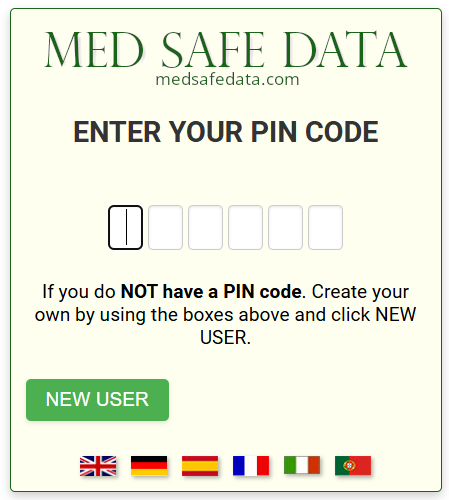
You will be prompted to enter a new PIN.
Step 3: Save Your PIN
After creating your PIN, the screen will confirm "YOUR PIN [pin number] IS REGISTERED. SAVE IT - THERE IS NO RECOVERY". Make sure you save this number. Enter it again to proceed to the first data page.
Step 4: Complete Your Basic Data
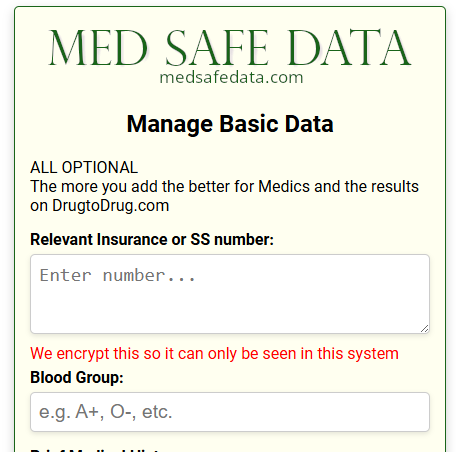
Complete the Basic Data page. All fields are optional, but adding more information will provide better results from the AI and be more helpful for medical professionals.
- Relevant Insurance or SS number: This number is only shown to medics and is not used in the AI query.
- Blood Group: Not critical, but helpful for assessing drug interactions.
- Brief Medical History: Mention current conditions like Blood Pressure, Diabetes, Heart Attack, Stroke, or Cardio-vascular issues.
- Ethnicity: This question is included because genetic predispositions can influence certain diseases and conditions. While race is a social construct, these categories are often used in medical research to help identify risk factors.
- Other questions are self-explanatory.
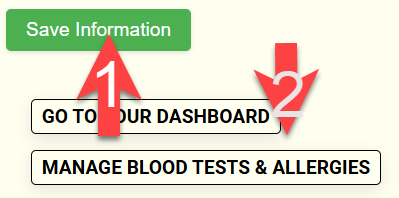
After filling out the form, click "1" and then, after the page reloads, click "2" as shown below.
Step 5: Add Allergies and Blood Test Results
Add any allergies and the corresponding reactions, as well as blood test results that show a problem. This information enhances the quality of the insights provided.
- For both Allergies and Blood tests, fill in the fields.
- Then, press "Add Allergy" or "Add Test Result."
- This will build a list of your entries.
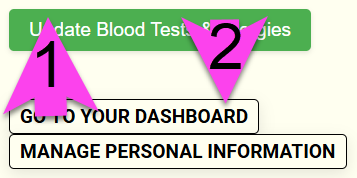
Once you have finished, click "1" and then, after the page reloads, click "2" as shown below.
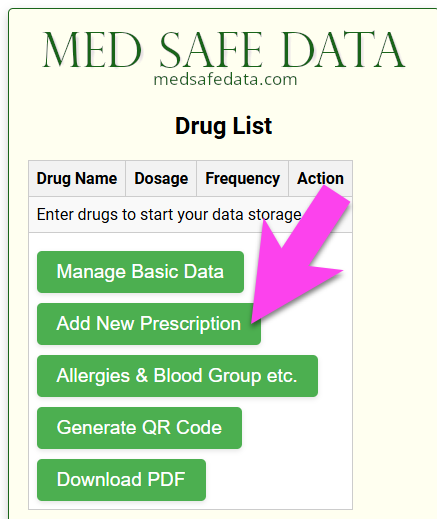
Step 6: Add Prescriptions
Now, you need to add your medications. Click the Add New Prescription button.
The next screen is easy to follow:
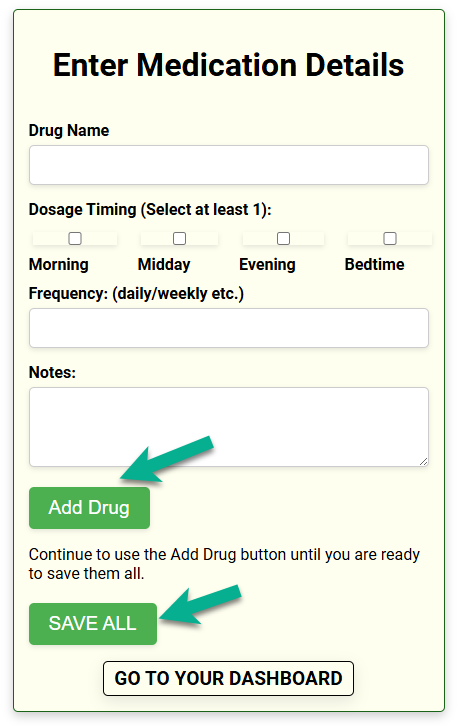
- Enter Drug name: It's best to use the generic name if you know it, as drug names can vary.
- Dosage Timing: Check the appropriate boxes.
- Frequency: Type how often you take the drug.
- If there are any special conditions, write them here.
- Click the Add Drug button.
- Add all your medications, and then click SAVE ALL to return to the Dashboard.
Step 7: Go to the Dashboard
Once all your data is entered, click the white button at the bottom of your dashboard.

Step 8: Generate Your Prompt
You will return to where you started at Step 1, but this time a new button will be near the top of the screen.

CLICK IT!
Step 9: Copy the AI Prompt
You will now see the generated AI prompt. Scroll to the bottom of the page and click the button shown below to copy the prompt to your clipboard.

Step 10: Use Your AI Prompt
Open your chosen AI engine and paste the query. The comprehensive nature of the query means the AI's response could be quite long.
The AI's response provides clear, easy-to-understand results regarding potential interactions and alerts. This helps you understand your polypharmacy safety risks and provides a foundation for discussion with your healthcare provider. This tool provides valuable insights but does not replace professional medical advice.